
Setting Up VS Code
|
|
This VS Code Tutorial is adapted from a tutorial written by Dheepak Krishnamurthy while affiliated with Environment and Climate Change Canada. Email: me@kdheepak.com. |
Install VSCode
Go to https://code.visualstudio.com/ and download VSCode.
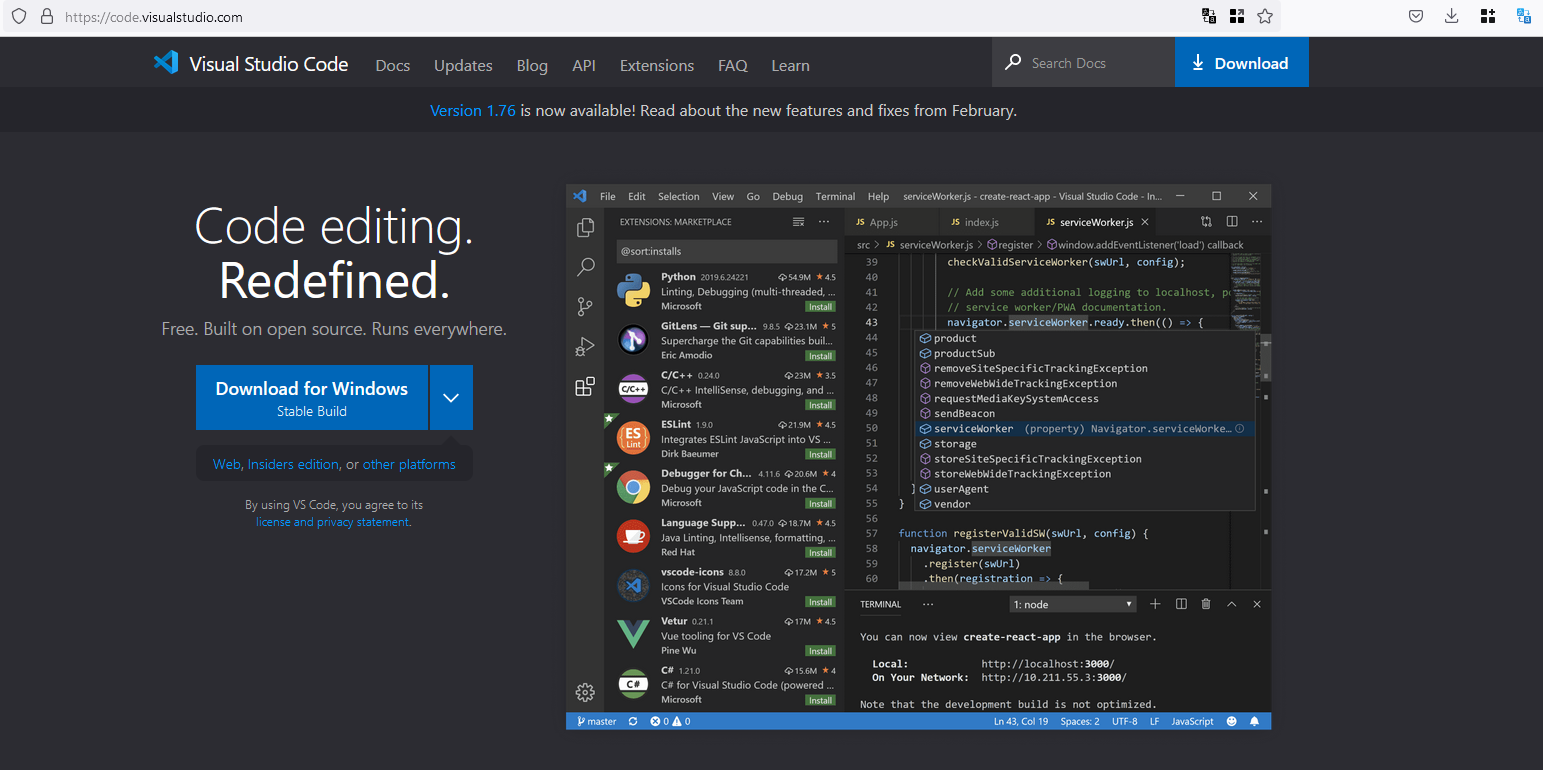
Download the installer and run it.
Enable the following options:
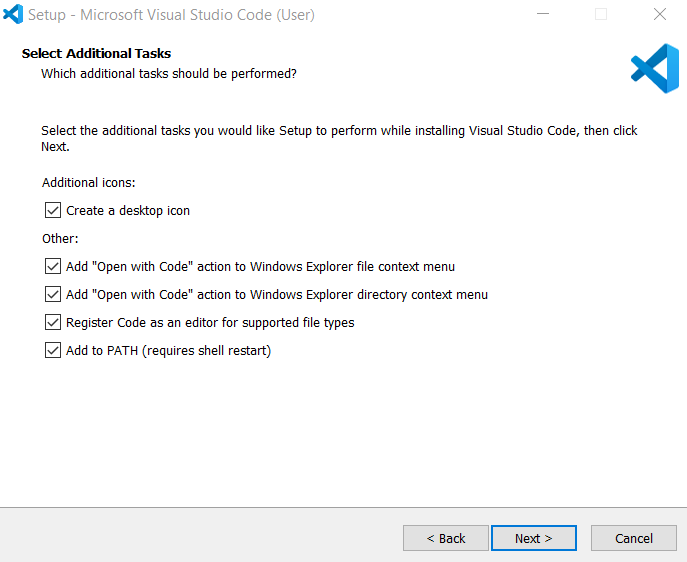
Continue with the installation steps on the screen. There will be a warning which you can agree to. At the end of these steps VSCode will be installed.
To use VSCode to work with ENERGY 2100, you must open your ENERGY 2100 model folder in VSCode. There are a couple ways to open your model folder in VSCode:
- You can open VSCode and choose File\Open Folder then select your model folder; or
- You can Right Click on your model folder and choose on “Open with Code” to open that folder in VSCode.
Now you are ready to use VSCode.
Install Julia Extension in VSCode
VSCode is a very powerful text editor and has lots of features. It also has the ability to install extensions.
Click on the extension button in the left Activity Bar (the bottom most icon that has 4 squares with the top left square removed), and search for Julia.
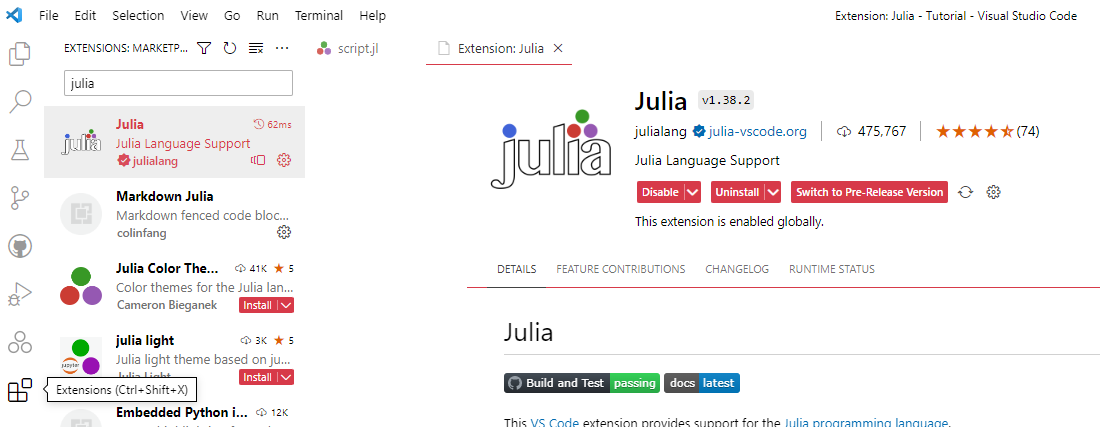
Then install the Julia extension by julialang.
You might also be able to go here https://marketplace.visualstudio.com/items?itemName=julialang.language-julia and click on Install.
Change Theme in VSCode
VSCode has a number of different color themes available.
Type Ctrl + Shift + P to open the “command palette” and type color theme.
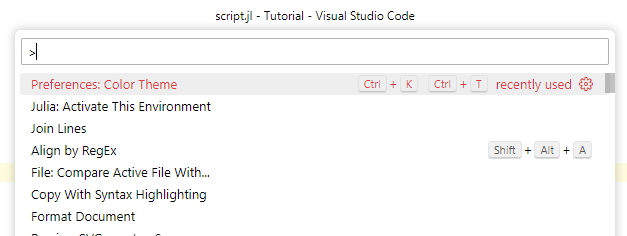
When you select Preferences: Color Theme, you’ll see a number of built-in themes that you can choose from.
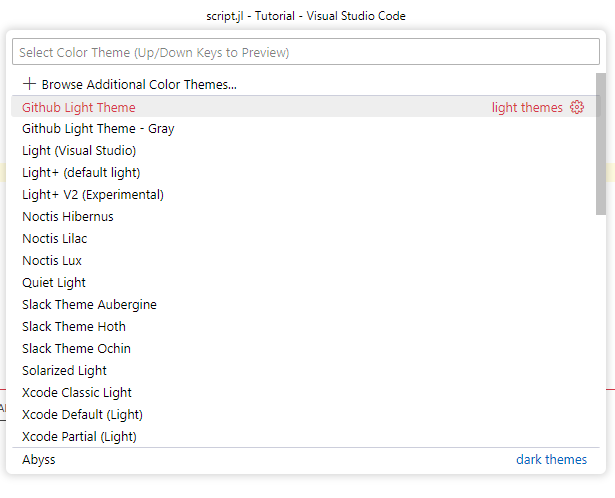
You can also install more themes from the extensions tab in the activity bar.
You can use Ctrl + + or Ctrl + - to increase or decrease the font size based on your screen and comfort preferences.
|
|
🕮 |
Exercise VSCode's Command Palette is your friend. It has a lot of features built-in and has features that can be extended by extensions. Open the command palette with Ctrl + Shift + P and search for Julia. Take a look at the various options available. |
Changing Settings
There are a LOT of settings in VSCode and many things you can customize.
Here’s a few recommended changes you could make to the settings. If you want to read what every setting does, you can search for individual settings listed below and change it to the value listed on the right.
- Workbench: Editor Preview: false
- Files: Insert Final New Line: true
- Files: Trim Auto Whitespace: true
- Editor: Format on Save: true
- Editor: Render whitespace: "boundary"
- Editor: Word Wrap: "off"
- Editor: Rulers: [120]
- Files: Encoding: "utf8"
- Terminal: Integrated Scrollback: 1000000
- Terminal: Right Click: "default"
If you want to change your settings quickly, you can use the command palette Ctrl + Shift + P and type “Open User Settings JSON”. Alternatively, you can hit Ctrl + , and hit the icon at the top right that says Open Settings (JSON) to convert it into a JSON format.
Then you can copy paste your desired settings in that file. You’ll need to add a comma after every key value pair except the last key value pair.
Here are some recommended settings for VS Code:
|
{ // Enable telemetry data collection for the Julia extension "julia.enableTelemetry": true, // Enable downloading of the symbol cache for the Julia extension "julia.symbolCacheDownload": true, // Enable crash reporter for the Julia extension "julia.enableCrashReporter": true, // Enable runtime completions for the Julia extension "julia.runtimeCompletions": true, // Always copy the environment when starting a new Julia session "julia.persistentSession.alwaysCopy": true, // Print executed code in REPL and append it to the REPL history "julia.execution.codeInREPL": true, // Show inline results for cell evaluation in Julia files "julia.execution.inlineResultsForCellEvaluation": true, // Enable linting for missing references in Julia code "julia.lint.missingrefs": "all", // Set the default formatter for Julia files "[julia]": { "editor.defaultFormatter": "julialang.language-julia" }, // Enable font ligatures in the editor "editor.fontLigatures": true, // Enable colorization of matching brackets "editor.bracketPairColorization.enabled": true, // Show whitespace characters only on boundaries between words "editor.renderWhitespace": "boundary", // Set the tab size to 2 spaces "editor.tabSize": 2, // Disable word wrapping in the editor "editor.wordWrap": "off", // Display a vertical ruler at column 150 "editor.rulers": [150], // Enable automatic find in selection when multiple lines are selected "editor.find.autoFindInSelection": "multiline", // Disable automatic detection of indentation settings "editor.detectIndentation": false, // Set the indentation size to the value of tabSize "editor.indentSize": "tabSize", // Enable automatic formatting of the document when it is saved "editor.formatOnSave": true, // Set the default file encoding to UTF-8 "files.encoding": "utf8", // Set the default end of line (EOL) character to LF "files.eol": "\n", // Enable automatic removal of trailing whitespace when a file is saved "files.trimTrailingWhitespace": true, // Ensure a newline is inserted at the end of a file when it is saved "files.insertFinalNewline": true }, // Enable case-sensitive search when using both upper and lowercase letters "search.smartCase": true, // Set the terminal scrollback buffer size to 1,000,000 lines "terminal.integrated.scrollback": 1000000, // Set the right-click behavior in the integrated terminal to the default "terminal.integrated.rightClickBehavior": "default", // Show whitespace changes in the diff editor "diffEditor.ignoreTrimWhitespace": false // this line doesn't have a comma } |