
View Variables Using the Julia REPL
Overview
To view variables in the REPL, you must first activate the model's Julia environment, load ENERGY 2100's Julia package, import the packages you want to use, and import the model's global structures you want to use.
Once you have a VS Code session set up, you are ready to view variables from the REPL.
There are multiple ways to view variables from the Julia REPL, including:
- Write variable to a CSV file using a DataFrame
- View variable in REPL using a DataFrame subset
- Write println statements in the REPL
- Run an existing output .jl file from the REPL.
The sections below provide instructions for each of these methods.
The instructions that follow assume you have performed all the steps above to import the required functions and packages into your Julia workspace.
Write Variable to a CSV file using a DataFrame
This section provides instructions on writing to CSV files by first assigning the variable to a DataFrame, then using CSV.write to save it to a file.
|
|
🛈 |
A DataFrame holds the variable in an easy-to-view format with set identifiers. The instructions below apply only to variables that are saved on the database (DB). |
To write variables to a CSV file from the Julia REPL, follow the instructions below:
- Assign the desired variable to a DataFrame:
|
df = ReadDisk(DataFrame,DB,"DBPartition/VariableName") |
The example below shows a DataFrame of the residential xPkSav variable, which is stored on RInput in the database:
|
|
🕮 |
Example
Julia Output
|
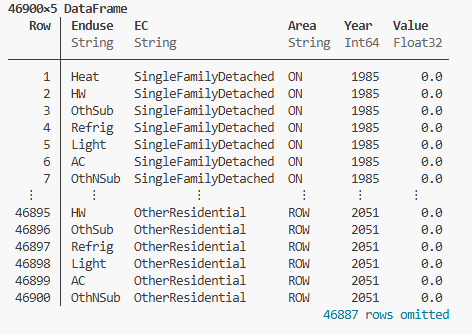
- Use the CSV.write function to save the DataFrame (df) to a file:
|
CSV.write("output.csv",df) |
|
|
|
By default, the .csv file will be saved to the root model directory. If you want to store the .csv files to a separate folder, first create the folder, then revise the command include the folder name: CSV.write("newfolder/output.csv", df) |
- You can append the variable to an existing csv file by using append = true.
|
CSV.write("output.csv", df, append=true) |
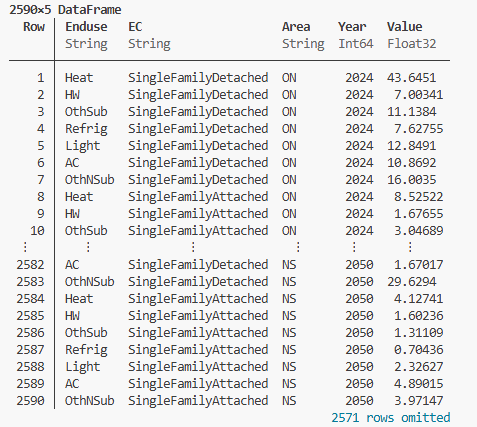
- If you don’t want to read any zero values, you can set the skip_zeros keyword argument to true:
df = ReadDisk(DataFrame,DB,"DBPartition/VariableName",skip_zeros = true)
|
|
🕮 |
Example
Julia Output
|
View Variable in REPL Using a DataFrame Subset
Most variable arrays in ENERGY 2100 are too large to view in their entirety as a DataFrame directly in the REPL. However, you can see a slice of the variable directly in the REPL using the @rsubset macro (from the DataFramesMeta package).
The @rsubset macro allows you to filter rows of a DataFrame. To view a slice of a variable in the REPL, follow the instructions below:
- Save the variable as a DataFrame:
|
df = ReadDisk(DataFrame,DB,"DBPartition/VariableName") |
- Create a subset of the DataFrame by selecting specific elements of the variable's sets:
|
df_subset = @rsubset df begin :set1 == "SetKey" :set2 == "SetKey" ... end |
|
|
🕮 |
Exercise Create a subset of a residential xPkSav DataFrame that selects British Columbia, Single Family Detached, Lighting for year 2030.
|
|
|
|
You must select the set elements using set keys rather than set descriptors. |
To select more than one set element in a given set, use the logical "or" operator: (||):
|
df_subset = @rsubset df begin :set1 == "Set1Key1" || :set1 == "Set1Key2" || :set1 == "Set1Key3" :set2 == "Set2Key" ... end |
|
|
🕮 |
Exercise Create a DataFrame subset of the residential variable, xPkSav, using @rsubset. Select 3 ECs: SingleFamilyDetached, SingleFamilyAttached, and MultiFamily for British Columbia Lighting in the year 2030.
|
Alternatively, to select more than one set element in a given set, you can also use the in operator, which acts as a filter to check if elements in a DataFrame column exist within a specified collection:
|
df_subset = @rsubset df begin :set1 in ["Set1Key1", "Set1Key2", "Set1Key3"] :set2 == "Set2Key" ... end |
|
|
🕮 |
Exercise Modify the DataFrame subset you created above for the residential variable, xPkSav, using @rsubset. Select 3 ECs: SingleFamilyDetached, SingleFamilyAttached, and MultiFamily using the ":EC in [...]" method to select the set elements.
|
To select a range of years, use the less than or equal to operator (<=):
|
df_subset = @rsubset df begin :set1 in ["SetKey","SetKey","SetKey",...] :set2 == "SetKey" ... firstyear <= :Year <= lastyear end |
|
|
🕮 |
Exercise Modify the DataFrame subset you created above for the residential variable, xPkSav, using @rsubset. Replace the year selection of 2030 with a range of years: 2028 to 2030.
|
- View a DataFrame or DataFrame subset just by typing the name of the DataFrame into the REPL:
|
dfname <enter> df_subsetname <enter> |
|
|
🕮 |
Exercise View the DataFrame and the DataFrame subset you created in the previous exercises.
|
Write println Statements in the REPL
To view a variable in the REPL using println, first read the variable and its sets into your workspace, then loop through the variable's sets and use the Julia println as described in the instructions below.
- Identify the sets of the variable you want to view.
You can find out more about a variable's sets by importing and using the attributes function data_attrs:
|
import EnergyModel.data_attrs data_attrs(DB, "DBPartition/VariableName") |
The example below shows the results of calling the data attributes function for the variable xPkSav in the industrial sector (stored on IInput):
|
|
🕮 |
Example 🗎 Julia Output |
From the output of data_attrs, we see that xPkSav is defined by the sets "Enduse", "EC", "Area", and "Year".
- Read the desired variable and sets into your workspace.
By importing and using ReadDiskAndSets, you will read in the variable and sets to the names you specify on the left-hand-side of the equation as follows:
import EnergyModel.ReadDiskAndSets
(;VariableName, Set1Name, Set2Name, ...) = ReadDiskAndSets(DB, "DBPartition/VariableName")
|
|
🕮 |
Exercise Import Read the variable and sets for xPkSav from the industrial sector. If you don't know the sets, first find them using the data.attrs function.
|
- Select sets and write desired variable values using println:
set1s = Select(Set1,["Set1Key","Set2Key",...])
set2s = Select(Set2,"Set2Key")
years = collect(Yr(year1):Yr(yearlast))
for enduse in set1 in set1s, set2 in set2s,...,year in years
    println("VariableName(",Set1[set1],",",Set2[set2],",",Year[year],")=", VariableName[set1,set2,...,year])
end
|
|
🕮 |
Exercise Generate the .dta outputs created by ElectricSummary.jl (stored in Output/ExcelOutput). Locate and view the .dta files that were generated.
🗎 Julia Output |
Run an Existing Output .jl File from the REPL
To run an output file from the REPL, follow the instructions below:
- Include the path to the desired output file in your workspace:
|
include(Output/ExcelOutput/FileName.jl") include(Output/AccessOutput/SubfolderName/FileName.jl") |
- Call the control function that is at the bottom of the output file:
|
ModuleName_DtaControl(DB) |
Output will be generated and saved with .dta extensions in the \2020Model\out folder.
|
|
🕮 |
Exercise Generate the .dta outputs created by ElectricSummary.jl (stored in Output/ExcelOutput). Locate and view the .dta files that were generated.
🗎 Julia Output |
